Network Configuration (Via iSolarCloud App)
Based on the available connection ways in the communication devices, choose one of the following:
- EasyConnect (with WLAN connection)
- Ethernet connection
- Wi-Fi direct connection
It is supported in WiNet-S, WiNet-S2, and Wi-Fi-P2.
-
Go to Commissioning after adding a device.
-
Choose Network configuration to go to WLAN connection. Turn on WLAN on the phone, and connect to the home router.
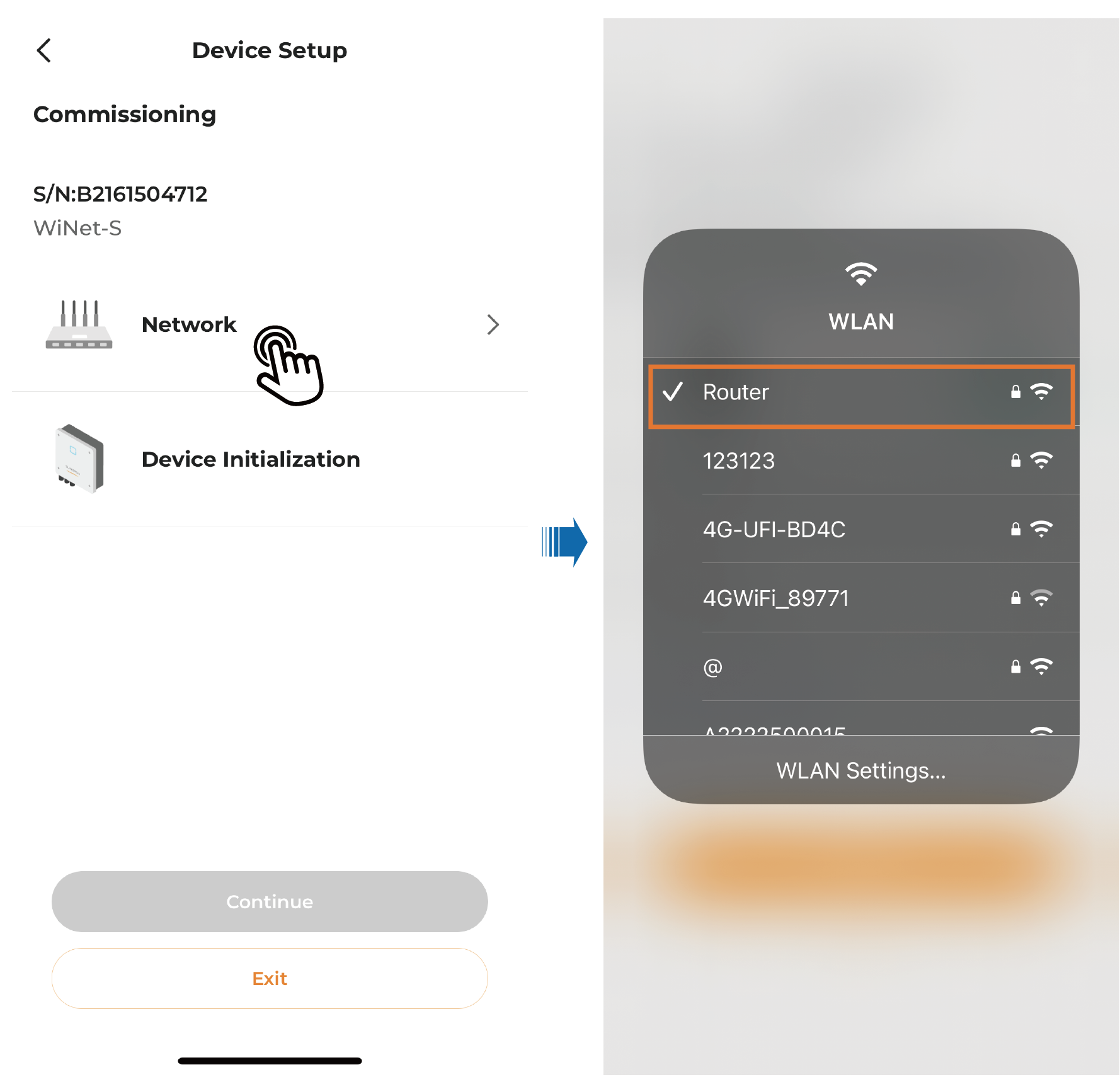
-
Return to the WLAN connection, enter the home router's WLAN password, and tap Connect. Press the button on the device once, by following the on-screen instructions, to activate EasyConnect, and then tap Continue.
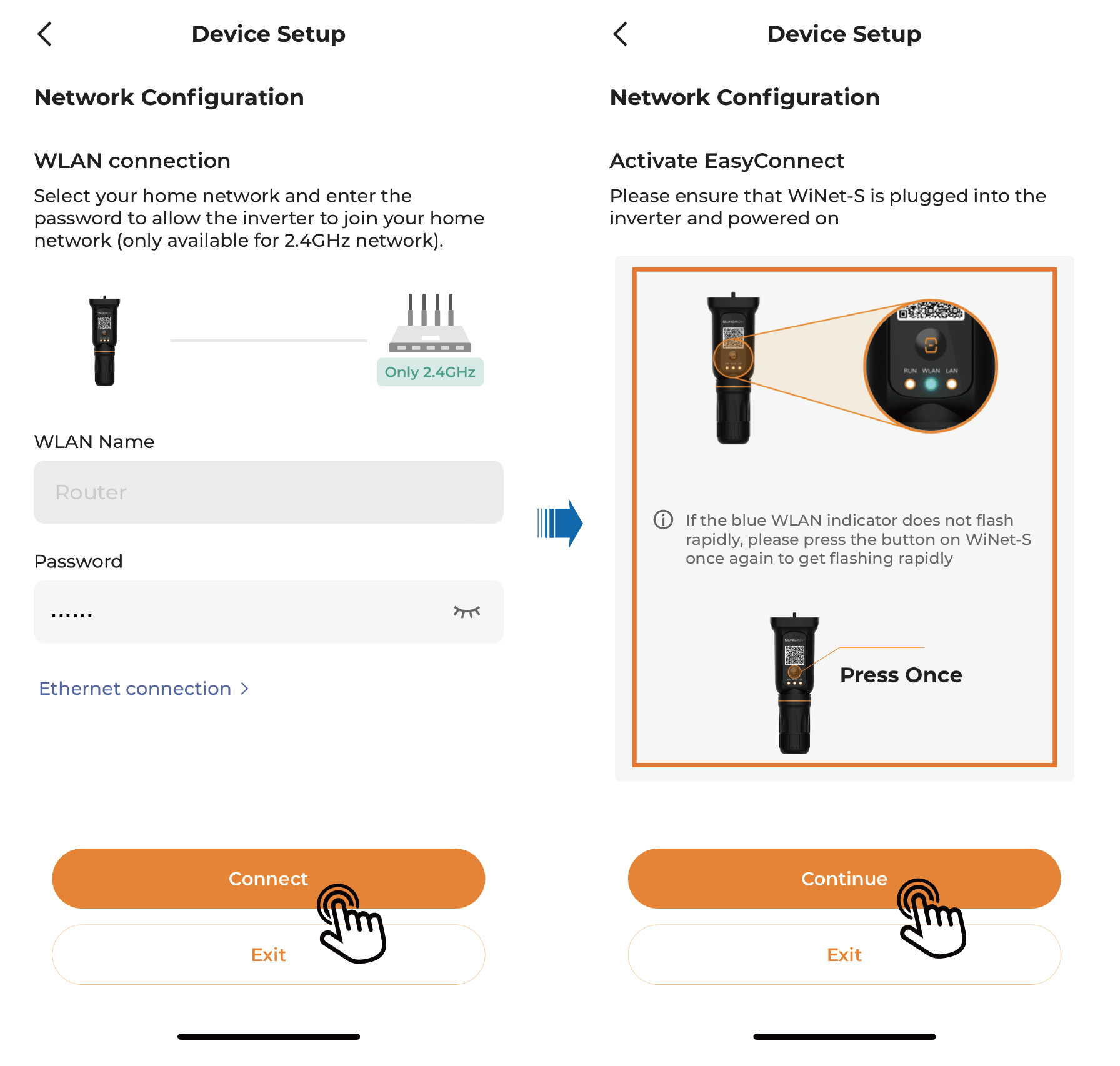
-
Wait for the module to connect to the home network and the cloud. Upon success, the network configuration is now completed.
-
In case EasyConnect has failed, tap WLAN direct connection in the pop-up on the screen. Press the button on the device three times by following the on-screen instructions, and tap Continue. Then, tap Join in the confirmation dialog box shown on the screen.
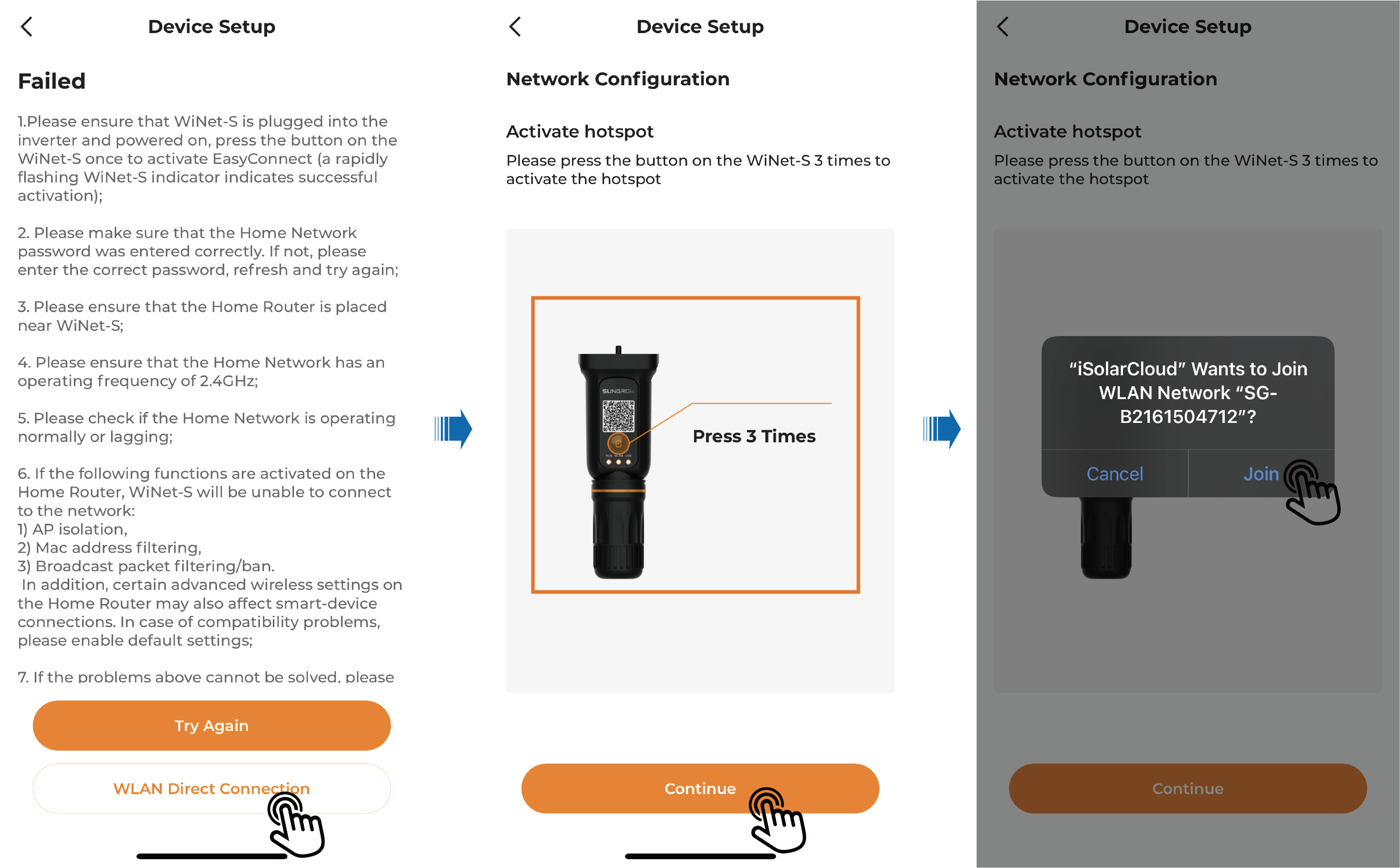
-
Select the target WLAN, enter the password, and tap Confirm. Wait for the module to connect to the home network and the cloud. Upon success, the network configuration is now completed.
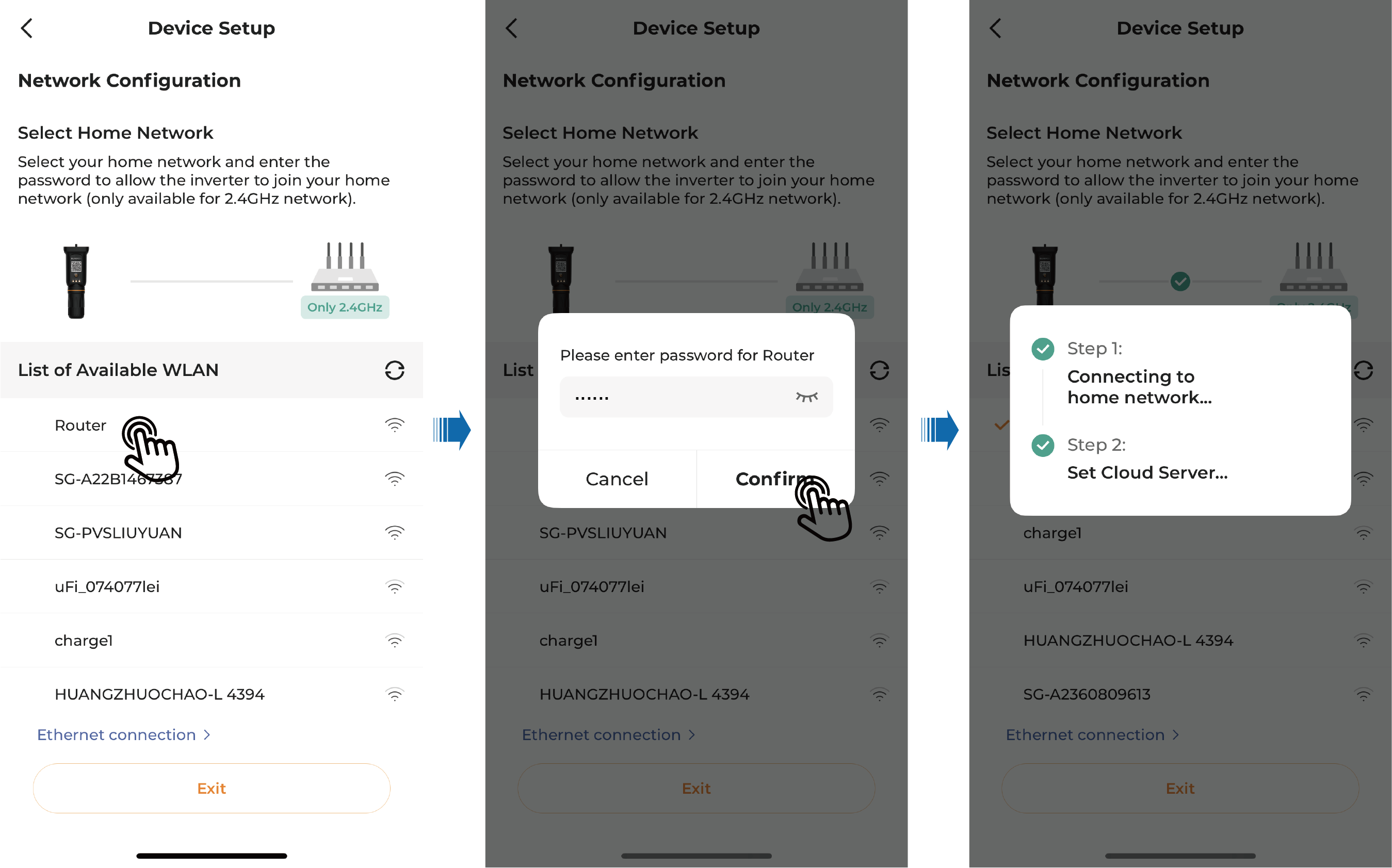
It is supported in WiNet-S and WiNet-S2, but not in Wi-Fi-P2.
-
Go to Commissioning after adding a device.
-
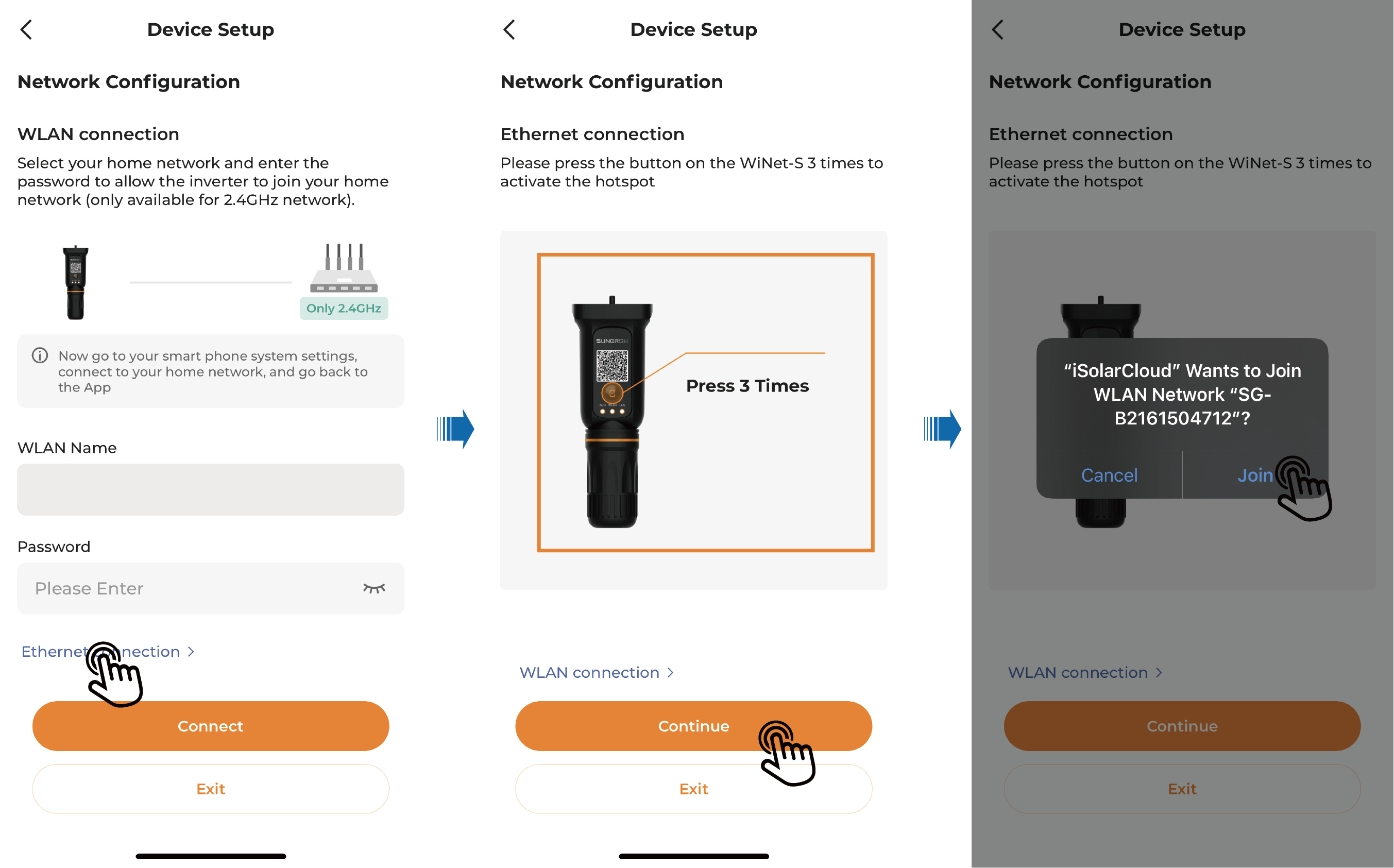
Choose Network configuration, and tap Ethernet connection. Press the button on the device three times by following the on-screen instructions, and tap Continue. Then, tap Join in the confirmation dialog box shown on the screen.
-
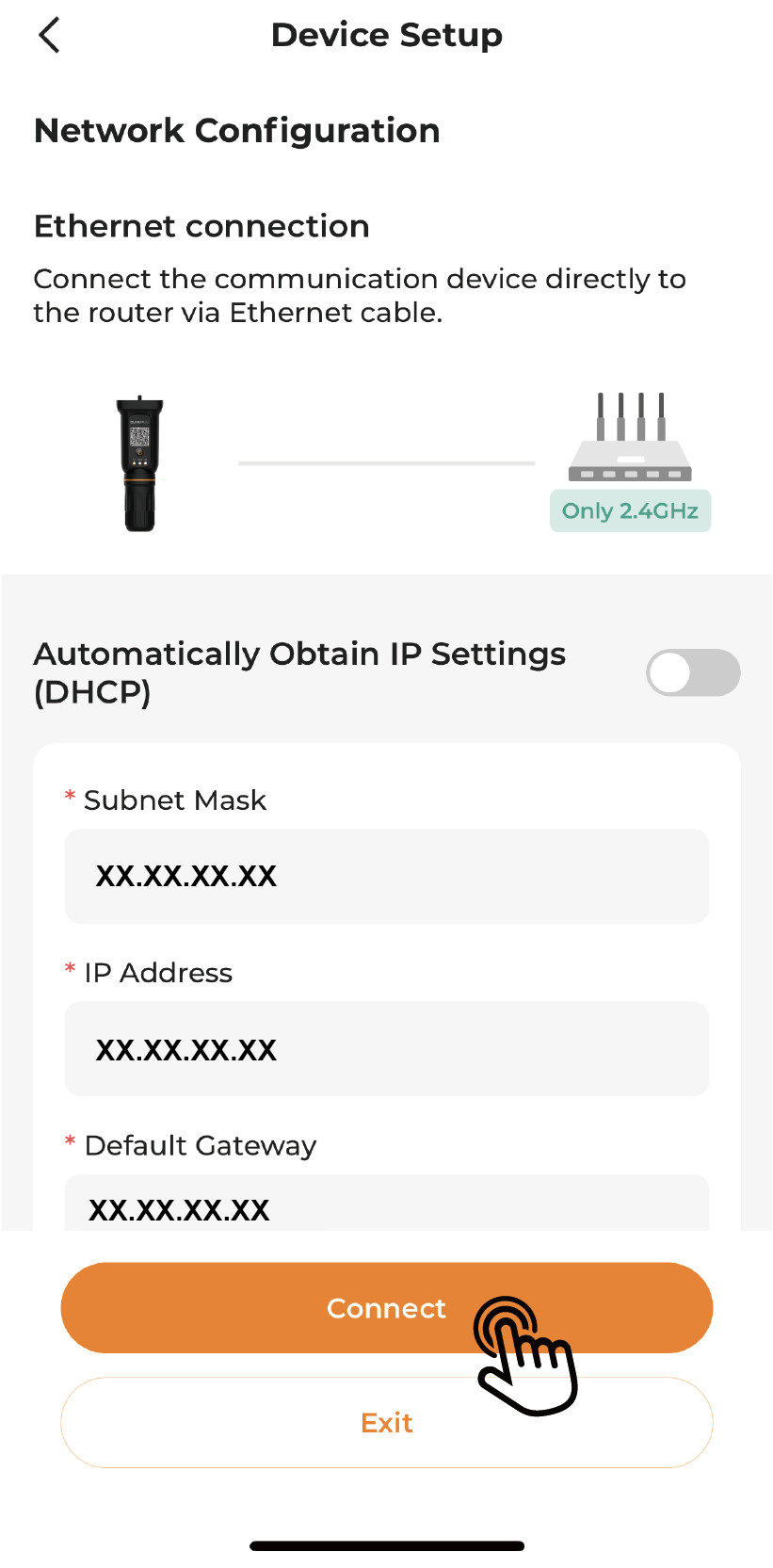
Complete the information required for Ethernet connection, and tap Connect. Wait for the module to connect to the home network and the cloud. Upon success, the network configuration is now completed.
Wi-Fi direct connection
It is supported in WiNet-S, WiNet-S2, and Wi-Fi-P2.
-
Go to Commissioning after adding a device.
-
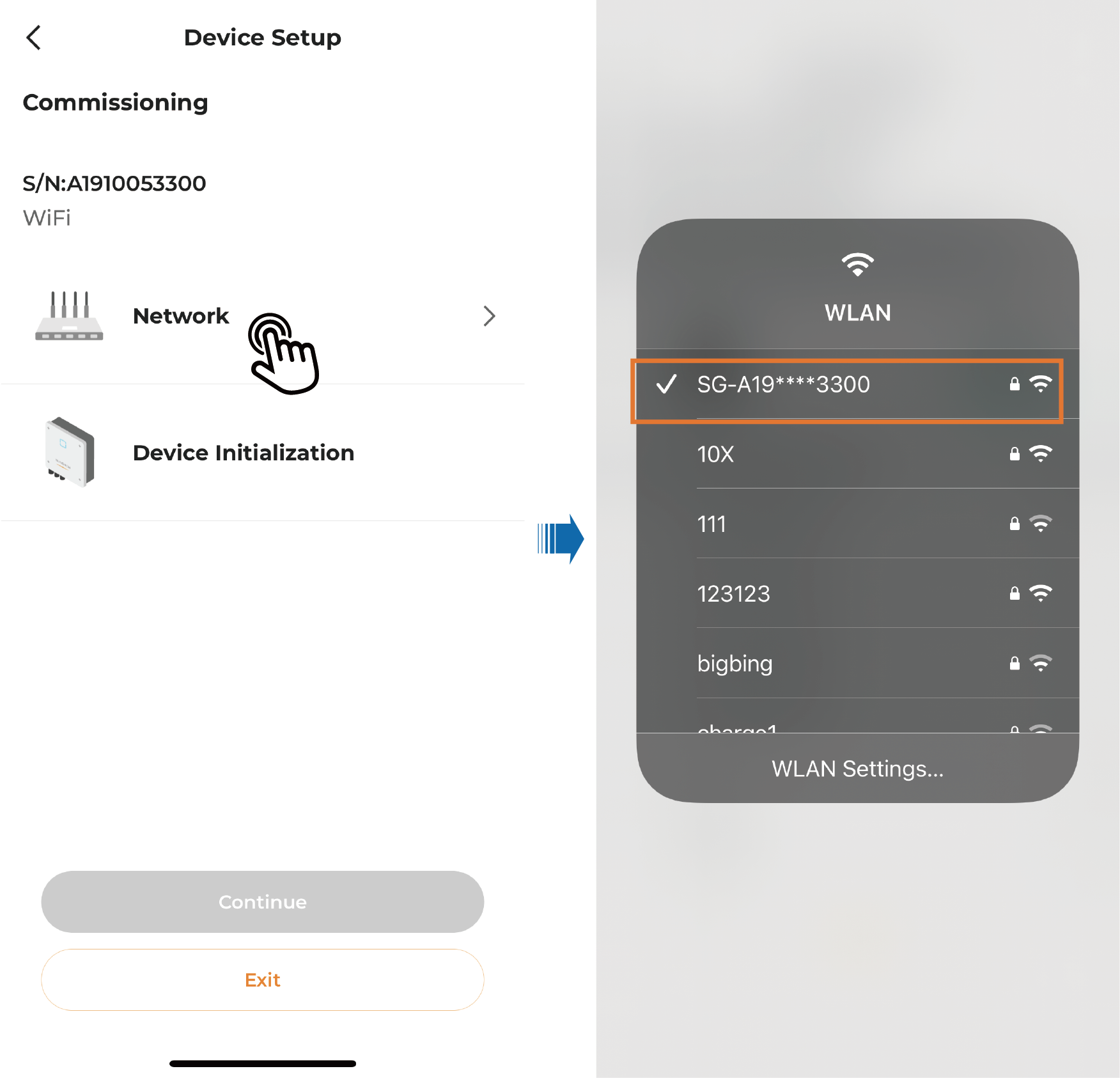
Choose Network configuration. Turn on WLAN on the phone, and connect to the WLAN named as "SG-Wi-Fi module S/N". The S/N of the Wi-Fi module can be found on the side of the module.
-
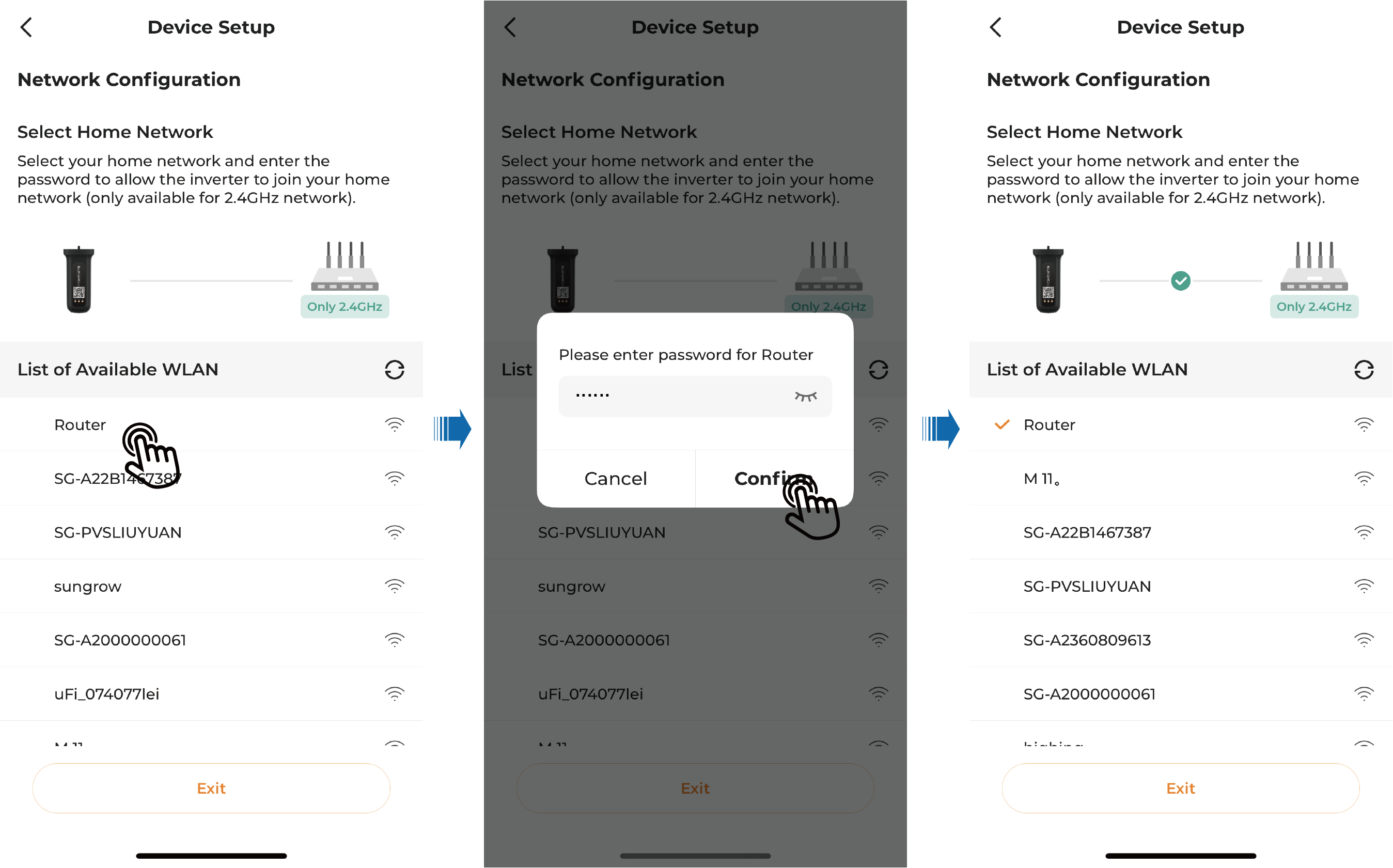
Choose the WLAN of the home router, enter the password, and tap Confirm.
-
Wait for the module to connect to the home network and the cloud. Upon success, the network configuration is now completed.